BaseUI
What is BaseUI?
BaseUI is the stock UI interface that's designed to support all devices with screens - making it more intuitive, more capable including new standalone features, and easier to use on a wider range of devices. BaseUI starts a user's journey with Meshtastic and serves as the base or foundation of the experience.
Supported Devices
All devices with an OLEDOLED (Organic Light-Emitting Diode). A display type used on many Meshtastic devices. The OLED Type setting selects which panel driver the firmware uses., EInk, or TFT display will support BaseUI.
Installation
BaseUI is by default installed on supported devices using the Meshtastic Web Flasher. Select a 2.7+ version firmware. Devices that support Meshtastic UI can enable this with the option to use both UIs on their device; switching is performed through their respective menu systems.
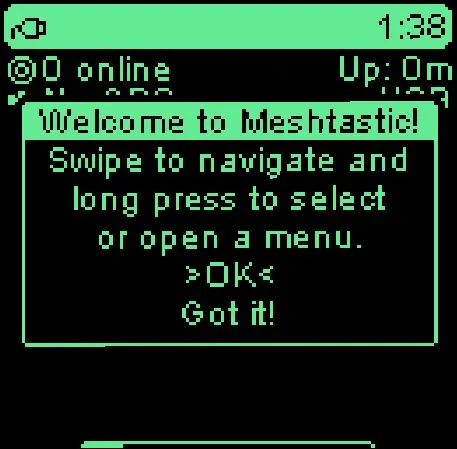
Initial Setup
Buttons
BaseUI is designed to be navigated with as little as one button but support a myriad of devices from CardKB, Rotary Encoders, Trackballs, and Rocker Switches.
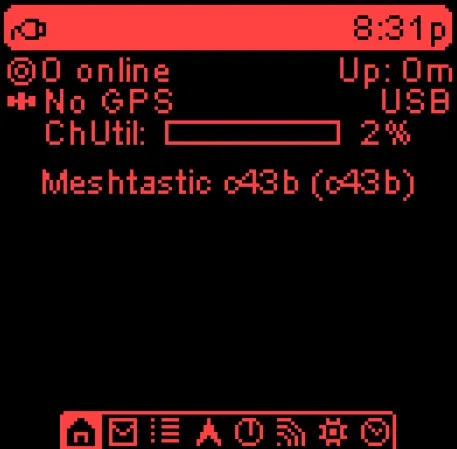
On-Screen Menu
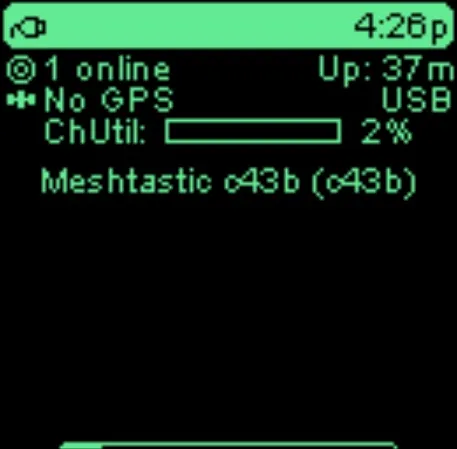
BaseUI has a built in menu, with a few basic actions, and options for configuring the device.
To open the action menu, long-press the user button.
- short-press: next item
- long-press: select
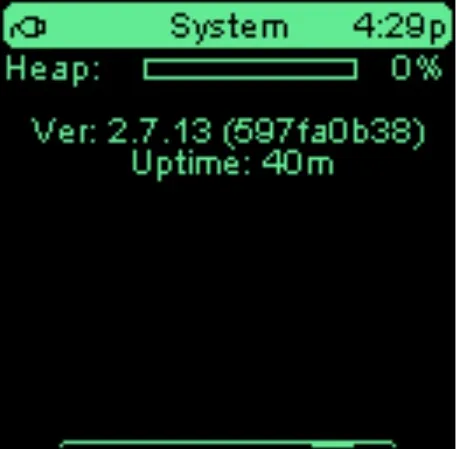
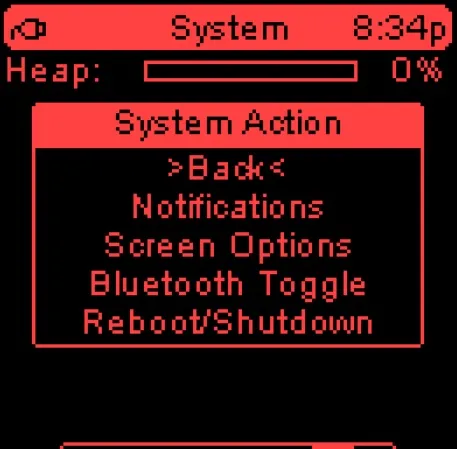
Action Menus
Note: Certain options described below may only be available depending on specific hardware components or configuration selections.
Home
- Sleep - Temporarily turn off the display, can be awoken with the user button
- Send Position - Manually announces the device to other nodes on the mesh. This is optional, as nodes are discovered automatically, however sending a ping manually may speed up this process is some situations.
- New Preset Message - Send predefined text messages to the mesh network from the device without using the phone app. To enable this feature, set a list of predefined messages.
- New FreeText Message - For devices with physical or virtual keyboards send freely typed text messages to the mesh network from the device without using the phone app.
Message
- New Preset Message - Send predefined text messages to the mesh network from the device without using the phone app. To enable this feature, set a list of predefined messages.
- New FreeText Message - For devices with physical or virtual keyboards send freely typed text messages to the mesh network from the device without using the phone app.
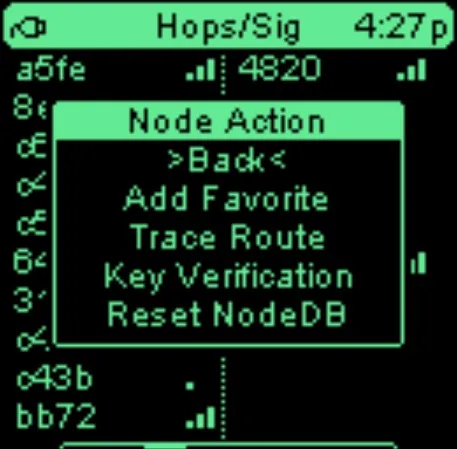
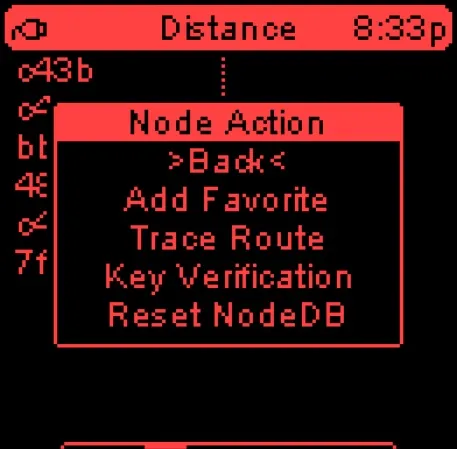
Node
- Add Favorite - Manually select a node to add as a favorite on your device
- Trace Route - Perform a trace route to a selected node
- Key Verification - Perform a key verification between two 2.7+ nodes - these two nodes need to be in close proximity to visually compare keys
- Reset NodeDB - Perform a nodeDB reset
Position
- GPSGPS (Global Positioning System). A satellite positioning system. A node with a GPS module determines its own location and can report that position to the mesh. Toggle - Enables or disables the device's GPSGPS (Global Positioning System). A satellite positioning system. A node with a GPS module determines its own location and can report that position to the mesh. hardware.
- GPSGPS (Global Positioning System). A satellite positioning system. A node with a GPS module determines its own location and can report that position to the mesh. Format - Select between one of seven GPSGPS (Global Positioning System). A satellite positioning system. A node with a GPS module determines its own location and can report that position to the mesh. format options available
- Compass Headings - Change between Dynamic, Fixed and Freeze Heading for "N" if you have a compass
- Compass Calibrate - Perform a 30 second compass calibration
LoRa
- Device Role - Choose between Client, Client Mute, Lost and Found, or Tracker
- Radio Preset - Choose one of the available preset like ShortTurbo or LongFast
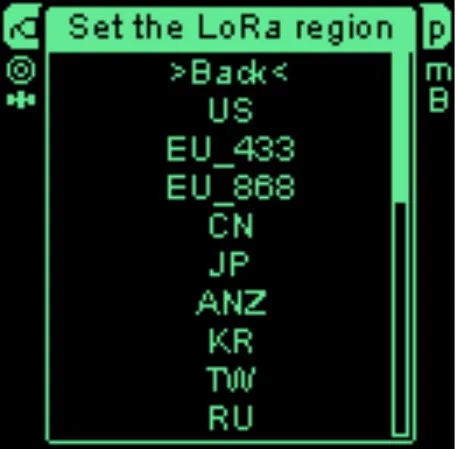
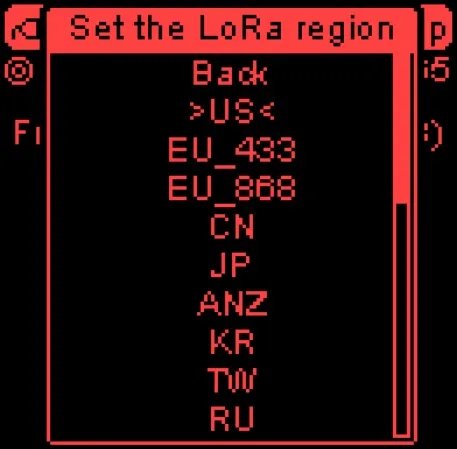
- Region Picker - Change your LoRaLoRaA low-power, long-range wireless communication technology used by Meshtastic devices to enable communication over distances of several kilometers without the need for cellular, Wi-Fi, or other traditional network infrastructures. Region
System
- Notifications
- Buzzer Actions - Select for what type of notifications will invoke the buzzer
- Screen Options
- Brightness - Pick Between Low, Medium, High brightness
- Screen Color - Pick display color from list of available choices
- Bluetooth Toggle - Enable / Disable Bluetooth (will reboot device)
- Reboot/Shutdown - Manually reboot or power off the device (reboot or power off the device to save changes)
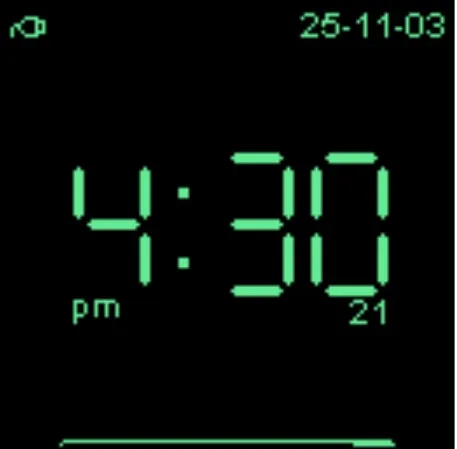
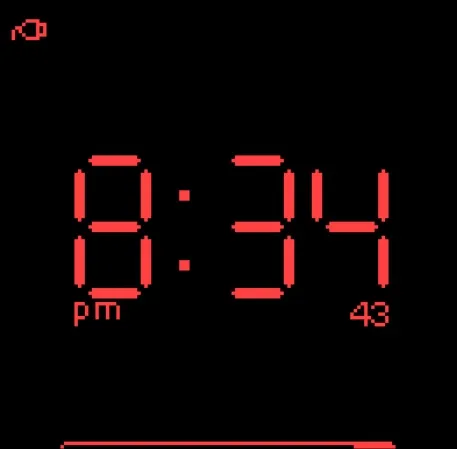
Clock
- Clock Face - Change between Digital and Analog Watch Faces
- Time Format - If enabled, times will be shown in 12 hour format (
1:50pm), instead of 24 hour format (13:50). - Timezone - Elect which timezone offset for this device
Favorites
- New Preset Message - Send predefined text messages to the mesh network from the device without using the phone app. To enable this feature, set a list of predefined messages.
- New FreeText Message - For devices with physical or virtual keyboards send freely typed text messages to the mesh network from the device without using the phone app.
- Trace Route - Perform a trace route to the favorited node
- Remove Favorite - Remove the current node from the favorite list, can be re-added through any Node list